MS Dynamics CRM and Supporting Customer Processes - Disabling The Save Button On Duplicate Detection Window
Recently our customers have been looking into additional ways to customize Dynamics CRM 2011 to support the processes of their teams. For certain customers, those who have exhausted all the options of "supported customization's", this requires some creative thinking.

Its interesting as this desire for more quirky changes to Microsoft Dynamics CRM 2011 is really a product of its own flexibility. CRM 4, while great, was fairly static when it came to processes. A lot of companies used it as a CRM solution in the more classic sense. Then came the big moon step forward that was CRM 2011. This gave organisations so much more flexibility in integrating systems and supporting processes. Trouble is, you give a customer a slice and they want the whole cake! For customers who have now been working with and adapting Microsoft Dynamics CRM 2011 for the last 2-3 years, the desire for configuring Microsoft Dynamics CRM 2011 to support the ever changing and unique processes of their business sometimes goes beyond what is possible under the heading of "supported customisations". The answer? Microsoft Dynamics CRM 2013 of course!!

In the meantime, when it comes to these sort of requests, we have to get creative! In line with this we had a customer recently who wanted us to remove the Save Record button on the duplicate detection window. The inbuilt duplicate detection, whilst it has its limitations, nicely gives you the opportunity to not save your newly entered record if a duplicate is found. However, you are also given the option to save the record even if a duplicate is found. This causes a problem when you have a large team of users who, to be frank, you don't trust to allow the to create duplicates. Thanks to a very helpful blog post from MS Dynamics CRM 2011 Tips we were able to disable the Save Record button fairly simply by taking the following steps:
- Navigate to your CRM instance on your app server.
- Navigate to \CRMWeb\Tools\DuplicateDetection\ViewDuplicates\
- Edit this file in Visual Studio or Notepad.
- Add this line to the ShowPage() javascript member or any member that is called by onLoad(): document.getElementById("btn_id_Ok").disabled="true";
- Save your change.
This will disable the button. If you would like to get clever (like we did) you can add some further script to disable this button for users with a certain security role.
Nice little bit of code that can help with the usability of Microsoft Dynamics CRM 2011 in certain scenarios.
Thanks
xRM Consultant
Microsoft Dynamics CRM 2013 – The Next Step


The Story of the Import & The Inactive Record
Ok, so i was transferring a bunch of records with lookup field linked to contacts and accounts from an old CRM 4 deployment to our new CRM 2011 deployment. I was trying to do this the quick and easy way……exporting records to excel.
A large number of the records imported ok but a large number failed due to a “duplicate lookup reference exists". Now, this normally means, especially in the case of a contact record that you have 2 “John Smith” records and the import does not know which one to resolve the newly imported record too. However, i searched and only 1 John Smith record came up?!……
So, then i remembered that we had recently ran a duplicate contact clean-up job on our contact records using the de-dupe process to find the duplicates and merging the records together. So i searched for John Smith but this time i searched for both Inactive and Active records and voila! 2 records!
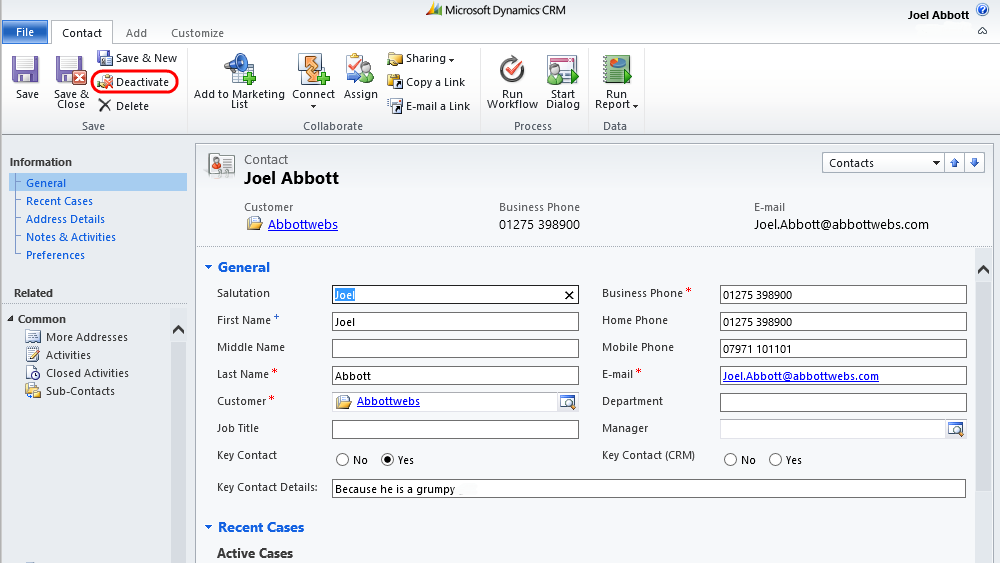
So, first point, by doing this i discovered that the when resolving lookup references, the import process includes deactivated records and as far as i can see there is no way to turn this feature off. So, after being mad at MS for a while, i eventually realised that actually this wasn't a bad idea, especially when migrating historical data. However, my issue was, how do i get around it?!
I realised that i needed to adjust the inactive contact records in such a way that they wouldn't be picked up by the import process which basically meant, changing the name on all the inactive records. But i also wanted to change it back again. So, i went for the following:
- Create 2 x new fields on the contact entity (don't have to put them on the form) called “Old First Name” and “Old Last Name”
- Wrote an OnDemand workflow that first of all, takes the values of the “First Name” and “Last Name” fields and populates them into the newly created fields above. The workflow will then clear the “First Name” and “Last Name” fields. This thus changes the full name to blank.
- Ran an advanced find to show all inactive contact records.
- Ran my workflow in step 2.
- Carried out my import (successfully as my newly imported records only resolved to active contacts)
- Wrote another workflow that takes the values of the “Old First Name” and “Old Last Name” fields and populates them into the “First Name” and “Last Name” fields. The workflow will then clear the “Old First Name” and “Old Last Name” fields. This thus changes the full name back to what it should be.
- Ran an advanced find to show all inactive contact records (again)
- Ran my step 6 workflow.
- If like me, you aren't bothered about changing the names of the deactivated contacts back from Blank you can stop at step 5
- If you wish to go through this process but only with a relevant sub-set of deactivated records you can obviously define this in the Advanced Finds (steps 3 & 7)
Ta
xRM Consultant
CRM 2011 Solutions – Problems & Best Practice
As you may (or many not) know i have been working on our largest CRM implementation which also happens to be out first large scale CRM 2011 implementation. As such, we have started working with solution files!

First of all, I would like to say that I really love the concept of solution files. Making changes for either support or development purposes on clients CRM systems in CRM 4 felt very clumsy and poorly controlled. The introduction of solutions dealt with this in a way that feels much more professional. However, the question arose, what is the best practice for using solutions?
The Problems
Surprisingly, i couldn't see many (if any) articles or details on this. So we started out by, on our development environment, creating a solution file using the client name and using the version number to control this. We added all the existing system components and made changes to these as we went along. However, the problem with this is that development felt a bit cumbersome. You couldn't use the native “Customise” tab on forms as this edited the default solution as well as the fact that all members of the team had to remember to stick to the solution only and not do this.We also had major issues when applying the solution that came from the way our solution was interacting with another managed solution. We installed our main solution on one of the clients servers after which, we installed the brilliant eCampaign (great email marketing extension for Dynamics CRM 2011) on the one of the clients servers. The problems started when we subsequently made changes (by creating another solution file) on this server.
When we tried to export our solution file, we were quite rightly warned that components were missing. So, we added the components. We did this until it appeared that all the required components (including those used by the managed eCampaign solution) were included. When we tried to import the solution into our Dev environment it failed because, you guessed it, we couldn't import components of a managed solution! So, we went back, removed all components of the managed solution, re-exported ignoring the warnings about missing components. When we tried to import it into our Dev environment………it failed because of missing components!!! The only “solution” was to edit the XML solution file, something we were very uncomfortable with at this stage.
Now, i know what your thinking. Why on earth are you developing on a client server!! And, to be honest your right. It was necessary at the time but bad practice which brings us back to what should be our future practice. For those of you interested, the way we got around the above situation was to ask the vendor (eCampaign) to uninstall the managed solution, export our solution file (which now no longer required the missing components) and reinstall the managed solution after.
The Best Practice (Well…according to me anyway)
So the moral of the story (or what we have learned so far is…)- Create a Deployment for your Client on your development environment
- Develop in the “Default Solution”.
- When ready to deploy on your client server, you have 2 choices:
- Export The Default Solution – If this is exported as managed, then when imported it will show as “Default Solution” in the clients list of installed solutions. If it is exported as unmanaged, it will overwrite the existing default solution and as such, wont appear in the clients list of solutions.
- Create A New Solution & Add The Relevant Components – When exported either as managed or unmanaged, it will show in the solution list.
- For small changes you also have 2 choices:
- Create A Single Solution File With Relevant Components – Create a solution file with a relevant name (i.e. ClientName Updates 2011) and add the relevant components. Every time the client wants changes made, create a solution with the same name but different version number on your Dev environment and when importing as a managed solution, it will update the existing solution. You can of course always do this with your solution file created in step 3 with the same results.
- Create Multiple Solution Files For Each Change Batch – Create a solution with a unique name and install on your clients environment.
- For major changes, i would go through step 3 again.
- When working with other managed plugins, always uninstall them from your Dev environment before exporting your solution.
Thanks
J
Set Default Activity Values – Duration, Date & Time
Ok, so first of all apologies for going quiet over the past few months! (Again!). I have just delivered the biggest CRM project that Chorus IT has ever delivered! This has been a huge success (with plenty lessons learned also!). Customer happy, seeing real tangible value and really excited about how MS Dynamics CRM 2011 is going to revolutionise their business.
As part of the development process, i have come across numerous interesting bits of JavaScript etc. that have helped me overcome certain issues and now we are coming to the conclusion of the project i will be blogging these over the coming weeks. I will also be thanking (if i can remember) those whose blog/tweets helped me come to the solutions i used along the way…
So, to begin… Setting Default Activity Values – Duration, Date & Time.
The system we built for our client is being heavily used to record activities for large sales teams. With a target of 100 calls a day in mind, any little pieces of data entry we could shave off would help hugely. One of these was the fact that every time they made a phone call they had to enter the duration (which on average was 2 minutes") and set the date and time to the current date and time.
Duration:
This was no where near as easy as i expected it to be. As you know, the duration field displays as an option set (dropdown) of values. As such you would think it would be easy to add values to this…………not so! This field is in fact a “Whole Number” field!
After very briefly considering editing aspx files etc, stumbled across a comment from Donna Edwards MVP that noted the fact that you can enter a numerical value in here. This got me thinking, rather than add the option to the list, could i simply populate it via JavaScript and allow the field to do its thing and display it correctly?
It worked!
I used the following JavaScript to populate the value (using a Whole Number of course) and had the following results…

Date & Time
In contrast with the above, this was much easier than i thought. I found a post of the website of the legendary Sonoma Partners that dealt with this for the specific circs I was looking for. It utilises the JavaScript Date() function to retrieve the current date and time and populate this in the relevant field as follows with the following results…
Only OnUpdate…
The only drawback to auto-populating these during the OnLoad event is that it will, of course, fire every time the page is loaded. This can be got around by referencing the form type when firing the JavaScript OnLoad as follows...function datetime()
{
var CRM_FORM_TYPE_CREATE = 1;
var CRM_FORM_TYPE_UPDATE = 2;
switch (Xrm.Page.ui.getFormType())
{
case CRM_FORM_TYPE_CREATE:
Xrm.Page.getAttribute("actualdurationminutes").setValue(null);
Xrm.Page.getAttribute("scheduledend").setValue(new Date());
break;
case CRM_FORM_TYPE_UPDATE:
// do nothing
break;
}
}
Hey presto! This meant that on creation of a phone call activity the script runs but not on any other occasion.
Hope this helps and stay tuned for some more interesting bits to come!
Thanks
xRM Consultant
Minimize Form Ribbon OnLoad using JavaScript
Hey Guys,
I am currently developing a CRM system in 2011 for one of our biggest clients. One of the requirements is to create editable lists which i have decided is best handled by creating holding entities for this information. For example, creating an entity to hold marketing sources allows easier reporting across selected sources and allows the marketing team to manage the list (adding new ones and deactivating unused ones). The problem with this is that to add a value to this it involves opening a whole CRM form which isn't the best. So, for these entities I don't display the left-navigation options and i wanted to minimize the Ribbon.
However, this wasn't as easy as it sounds…
First of all, having scoured the SDK i could see plenty of examples of how to add or hide BUTTONS on the ribbon and even (via other blogs) remove the ribbon itself, but nothing that would minimize the ribbon allowing it to be expanded if needed.
So after a conversation with the very helpful xRM Mike and reading another post by the excellent Rhett Clinton I used the following:
window.top.document.getElementById("minimizeribbon").fireEvent("onclick");
However, still didn't work…..
Reason being, that the Ribbon seems to be one of the last things to Load in the form, loading after the OnLoad events have fired. So, i needed to add a timeout to wait before firing the script and it worked a treat! Final code ended up as:
function toggleRibbonbar()
{
var t=setTimeout("toggleRibbon()",0);
}
function toggleRibbon()
{
window.top.document.getElementById("minimizeribbon").fireEvent("onclick");
}
Which gave the following results:

A big thanks to Rhett, Mike and as always the other CRM Legend that is Rob P
Ta
xRM Consultant
At Last!! Hide Tab (Section) in CRM 2011 with Javascript!!!
Ok, i realise that , for everyone else, this is not an earth shattering piece of JavaScript but this has been bugging me for Aaaaaaaaaaages!!!

I have been looking for the JavaScript to hide Tab (or what is now known as a section) in CRM 2011. Every other blog/SDK/forum post i read suggested the following:
1: Xrm.Page.ui.tabs.get(5).SetVisible(false);
2: Xrm.Page.ui.tabs.get(5).SetVisible(true);
No matter how i tried i could not get this to work. However, after some detective work……and reading this blog post (cheers) i realised that the bit i was missing was that in the script, the brackets need to contain the name of the tab (name, not the Label). However, it has to be contained in “”. So my code was…
1: Xrm.Page.ui.tabs.get("tab_3").SetVisible(false);
2: Xrm.Page.ui.tabs.get("tab_3").SetVisible(true);
Sorted! Hope that helps
Cheers
xRM Consultant
MS Dynamics CRM 2011 Quick Ref. Javascript
Just a quick post today to advertise a very very useful post by fellow CRM Blogger Gareth Tucker..
Brilliant list of Javascript basics in CRM 2011 - JScript in CRM 2011– Quick Reference for the Basics

Enjoy!
xRM Consulatant
CRM 4 Email Router–Service Wont Start!

Howdy,
I had a customer call this week stating that the email marketing solution they had purchased from us (eCampaign, brilliant solution check it out here) was not sending emails.
Upon investigation, we realised that the email had been created but for some reason Microsoft Dynamics Email Router was not sending them. The email router service was stoppped and every time we tried to retstart it would immediately stop again!
After some digging around we found a blog post that gave us the solution.
The Microsoft.Crm.Tools.EmailAgent.SystemState.xml in the C:\Program Files\Microsoft CRM Email\Service folder had become corrupt. We closed down email router, removed the file and restated the service. This worked a treat and all the emails started sending merrily. Only problem……27k emails started sending! But at least the customer was happy to be sending emails again.
Hope this helps
Thanks
xRM Consultant
P.S. Thanks to Marcello for his help!
Email Router Outgoing Email Delays
We have a client who uses workflows to guide their sales and marketing process very heavily and relies on certain emails being automatically sent as notifications from their CRM instance.
When we first set-up their solution we used the Outlook plug-in to send emails but as the minimum polling time for emails using the plug-in is 15 minutes this wasn’t going to work either. So, we set about using the Email Router. It was installed, setup and configured properly but for some reason there was this random delay in sending emails. Sometimes an email would be sent within a minute or 2 and other times it would take over 10 minutes. Sometimes a single email would be delivered and at other times 4 or 5 would come through at the same time?!!

We found out today what the problem was.
The issue lies firmly in the XML configuration file for the email router. The polling time for outgoing mail was set within the Microsoft.CRM.EmailAgent.xml was set to 1000 seconds. This polling was obviously based on the system time. So therefore, if the CRM Email Router polled the CRM at 10:00am and someone sent an email at 10:01 it not be delivered until 10:16ish, therefore the user would be aware of the delay. On the other hand if the user sent the email at 10:15, they would think that the emails were sending immediately “as they should be”. The solution was to change the polling time to 60 seconds (we didn’t want to push it!) and it worked a treat.
To make the change follow these steps:
- Go to your exchange server (the server where the email router is installed)
- Navigate to C:\Program Files\Microsoft CRM Email\Service
- Copy the Microsoft.CRM.EmailAgent.xml file to a safe location as a backup.
- Edit the Microsoft.CRM.EmailAgent.xml within Notepad (I prefer PSPad)
- Find the SchedulingPeriod element
- Change the value to 60 (it should be 1000 currently)
- Save the file.
- Open up the CRM Email Router and publish the changes
- Restart the Microsoft CRM Email Router service
- Your done!
Enjoy!


