Showing posts with label Chorus IT. Show all posts
Set CRM Form To Full Screen
Hi,
Quick but useful piece of JavaScript for you. Put this in the OnLoad event of any CRM form and it will maximise the window to fill your current screen size. Handy eh?!
window.moveTo(0,0);
window.resizeTo(screen.availWidth, screen.availHeight);
Enjoy!
Joel
xRM Consultant – Mobile Site!
Hi Guys,
I am very excited to release the xRM Consultant Mobile App for Iphone & Android!
To access this, open your web browser and go to www.xrmconsultant.com on your mobile device. This will give you access to all the features including the following:
- xRM Consultant Twitter Feed
- Blog Posts
- YouTube Videos
- Polling Questions
In addition, if you add it to the Home Screen on the IPhone, it loads as an app with no Safari bars getting in the way (as shown below)
Have to give credit to this to the guys at Widget Box. Fantastic site that allows you to create a host of widgets for your blog.
I have added some screen shots of it on the iPhone below for your perusal.
Enjoy!
IPhone Installation:
![IMG_0244[1]](https://blogger.googleusercontent.com/img/b/R29vZ2xl/AVvXsEhRXmw2VZFEHQla8aFjt1JDw_IXyjTtQH49Kwxh3YZ2Bug2wdLuBfiBSVMfPlFPPlzb6oSU-YDdVAaH9db8q2XmQWAB2wy2RZ4lO9c0m02gds_ov8rO9Y_5pybaJo41R1hHLVPPJ8IEeOY/s1600-h/IMG_0244113.png "IMG_0244[1]")
![IMG_0245[1]](https://blogger.googleusercontent.com/img/b/R29vZ2xl/AVvXsEj4EOGuxNVxCI7qzekl7JZVHwNqVwz89i3RUVRiAU0b-zYXIV51Y1XD83v1vqKffWMI_JLn7tbclF5INsp7bUUphRTBD5QaPpUpehRWa_KIJivR88lCgtaxoGV6dHB6WNTQy2fKu0lnudo/s1600-h/IMG_024518.png "IMG_0245[1]")
![IMG_0246[1]](https://blogger.googleusercontent.com/img/b/R29vZ2xl/AVvXsEhLHBwHFH1eB7Wz9-Jgr8yopZKjmyRefDmD7UANYrnEsqEE9UdZCkuLIH_l0b5s1R9psUk7I7kTCy4qhGu4vCSjCPo_ZAX2GXSiVX75KiP8GjicEAbCqJvuLRstv_9yXspKFnVZrBAKtVc/s1600-h/IMG_024617.png "IMG_0246[1]")
![IMG_0247[1]](https://blogger.googleusercontent.com/img/b/R29vZ2xl/AVvXsEhsejN-K5TzrpL5EKCNUBgoD20iniw7np78Fo1RjfoyATV_Cq9S3U58cTcyM-d-guu7XOGAnR63Q_NMgoZFFCs9FW5F_ps9cqgOwRzW_5gFJSexKL190oTc0UVd2_WXQQsgS0gW1WYkKxA/s1600-h/IMG_024717.png "IMG_0247[1]")
![IMG_0248[1]](https://blogger.googleusercontent.com/img/b/R29vZ2xl/AVvXsEjxk7rFQiwXu7VyxGjDJ9Ks68ZVbLZq8h3XknzjOr3Tqnd4Qy-FXHC2XlVbAquhyphenhyphenCO6DkUZ49XGGZ2AUoa9W4OPENV1zft_albt_IN_ws9JOb57UhUStLR-WNesAblbRHJU8OsvO8KRD2U/s1600-h/IMG_024817.png "IMG_0248[1]")
![IMG_0249[1]](https://blogger.googleusercontent.com/img/b/R29vZ2xl/AVvXsEhbiXze4z8aH8uuFOKhY4JqPWcT_Oi6zfGMKb8tOewJe2FaPtepWZxE8uf0xQMUBALf_qoJgrQ1Zce7IGLfrNiM6CPZNIuXuOINeFaoepNh-TWT0XUvyz6zfVGFlQe_afqfggGW8v1_ID4/s1600-h/IMG_024917.png "IMG_0249[1]")
![IMG_0250[1]](https://blogger.googleusercontent.com/img/b/R29vZ2xl/AVvXsEiyjxHWJVBtq4tNkj9x0k95XcWt-EmeGwZwVST77_yOlZHDsncSEsiOSVkutWM8dKg5vYQbr8HDlmH4xyLSAb_U5Egzk0nAViSpIcqKsaX5YF67kL_kP4IWneZf61TDvkpbu7WXHzFy5jI/s1600-h/IMG_025017.png "IMG_0250[1]")
Showing Queue Manager In Other CRM 4.0 Area’s
Hi,
We had a client for whom we developed a very complex CRM solution. It would seem simple; Sales Process and Stock Management Process. Not so. Their internal processes made this a complicated system that required a lot of thought, particularly when it came to the layout (Site Map) as we wanted to create areas for each of the relevant areas within CRM, putting all their entities in one place for them.
The problem came when trying to show the Queue Manager in another area other than Workplace. Not a big fan of editing Site Map XML directly, so we had been using the Demonstration Tools Utility. This awesome little tool that has been around for years, allows you to do a host of things including editing the Site Map and publish it to CRM directly.

There’s a simple reason why……its not an entity! We found that it was actually, what appears to be, an ASPX page that displays the information. So, with a bit of lateral thinking we realised we could simply add this to the Site Map by referring to the URL. We actually got the URL in the end by using the Outlook Plug-in. If you navigate to the Queue Manager Folder in outlook, right click and then click on properties it brings up the properties box for that folder.
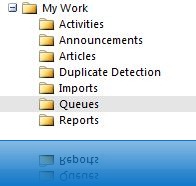
Click on the Home Page tab and as if by magic you get the URL for the Queue Manager view!


From here we simply put this link in as the destination URL for the Site Map item!

As far as I can see, you can also use this method to find the URL of any non-entity CRM function.
Hope This Helps
Joel
Displaying Visio Diagrams In CRM 4.0
Hi All,
My friend and colleague at Chorus IT, Rob Peledie, developed a fantastic method for displaying Visio Diagrams in MS Dynamics CRM 4.0.
Within Chorus, we had a requirement to display Visio Diagrams of our clients networks to aid the support engineers in their work. We had played around with a few ideas, but eventually Rob came up with the method he talks about in his blog. This method retains the formatting and viewing tools that Visio gives you giving great flexibility.

Anyway, for a more details explanation, pop over to his blog CRM Consult and have a read.
Thanks
Joel
Microsoft Dynamics - Filtered Lookup in CRM 4.0!
Anyway, with thanks to a fellow Dynamics CRM blogger, i have found a way of achieving filtered lookups in CRM 4.0!
In my scenario, i needed this functionality for 2 reasons. Firstly, i have an entity called Assets on which i have a set list of values, product families (i.e. servers, laptops etc) This list is published on my form as a picklist attribute. I also have another entity, IT Products, which houses my list of products. The same list picklist of product families is published on the IT Products form.
Therefore, i wanted to be able to add an Asset, select a product family from my drop down list and when clicking on my lookup to my products, display only those with my chosen product family.
I adapted some code found on another blog to achieve this:
Paste the following into the OnLoad event of the form:
document.FilterLookup = function(source, target)
{
if (IsNull(source) || IsNull(target)) { return; }
var name = IsNull(source.DataValue) ? '' : source.SelectedText;
name=encodeURIComponent(name);
target.additionalparams = 'search=' + name;
}
document.FilterLookup(crmForm.all.citja_productfamily, crmForm.all.citja_itproductid);
Paste the following into the OnChange event of the Picklist:
document.FilterLookup(crmForm.all.citja_productfamily, crmForm.all.citja_itproductid);
For those of you that noticed, the "name=encodeURIComponent(name);" line allows you to deal with ampersand characters as well as any other funny international characters that may appear in your list
This works very very nicely and is a great workaround till version 5.
Enjoy
Joel
P.S. Credit to the guys at Advantage Works for their original post
CRM 4.0 - Dynamically Customising Left Navigation Menu Option
First, navigate in CRM to Customisation\Customize Entities\Account\Forms and Views\Form. Open the form record and create a new Tab called Navigation Options. O n this tab create a section called “Standard Entities”:


